Most people who follow Indian markets end up juggling three or four tools: one for live quotes, another for charts, a browser tab for option data, and a notes app where price levels go to be forgotten. Market Pulse is built around the idea that this scattering is the actual problem. It bundles watchlists, charts, screeners, alerts and an option chain into a single Finance app covering NSE and MCX.
The listing describes it as India’s only share market superapp, which is marketing language, but the feature set behind it is specific enough to judge on its own terms. It is published under the name Punch – Options Trading & Stock Broking, and it consistently ranks among the higher-rated Indian market analysis apps.
Watchlists, Live Rates and Chart Work
The starting point for most users is the watchlist. Market Pulse supports multiple lists, so commodity positions tracked through MCX live rates can sit apart from the equity names you follow on the NSE live market watch. If you run a long-term portfolio alongside a handful of short-term trades, that separation matters more than it sounds.
Charts are interactive and support technical indicators plotted directly on price. Nothing exotic here in concept, but the execution is what people rate the app for: indicators go on quickly, and you are not fighting the interface to change a timeframe.
Alerts are the piece that ties it together. You set them against your own strategy conditions and they fire in real time, which means you are not required to stare at a screen to know when a level breaks.
The Screener and Option Chain Side of Market Pulse
Two features push this beyond a quote-tracking app.
The stock screeners (scanners) let you filter the market down to names that match conditions you care about, rather than scrolling through a list of gainers and hoping something jumps out. For anyone building a shortlist before market open, this is where the time savings show up.

The option chain view handles the other half of the workflow. Analysing option trades from a raw chain table on a phone browser is miserable work; a purpose-built view with the data laid out for comparison is a different experience entirely.
Put together, a typical session looks something like this:
- Scan with a screener to shortlist names worth attention
- Move promising candidates onto a dedicated watchlist
- Open a chart, plot indicators, and mark the level that matters
- Set a realtime alert on that level
- Check the option chain if the trade is going to be expressed in options
Traders, Long-Term Investors and Everyone Tracking One Position
The app is aimed at active traders, but the audience is wider than that in practice. Someone holding a modest equity portfolio and checking it monthly still benefits from alerts that fire when a holding moves outside a range they have decided is normal.
Commodity followers are a distinct group here. MCX coverage is not universal among Indian market apps, and if gold, silver or crude prices feed into how you plan spending or hedge a business, live rates on those contracts have direct personal finance value.
Then there is the learning use case. The store description mentions analysing, learning and thriving, and the screener in particular works well as a teaching tool. Running a filter and then studying why the results look the way they do teaches more about market structure than reading about it does.
Running Market Pulse on a Windows PC
The moment the desktop starts to look attractive is usually chart work. Plotting three indicators on a five-minute chart and then dragging a trendline across it on a phone screen involves a lot of pinching and undoing; the same task with a mouse on a 27-inch monitor takes seconds, and it is at that point that setups for Market Pulse for PC become worth the small amount of effort involved.
Market Pulse is an Android app, so a Windows machine runs it through an Android emulator such as BlueStacks. Two settings matter more than the rest for this particular app. First, allow notifications through to the Windows desktop, otherwise the realtime alerts you configured will fire inside the emulator and go unseen, which defeats their purpose. Second, keep the emulator window running rather than minimised to the tray during market hours if you depend on those alerts arriving promptly.
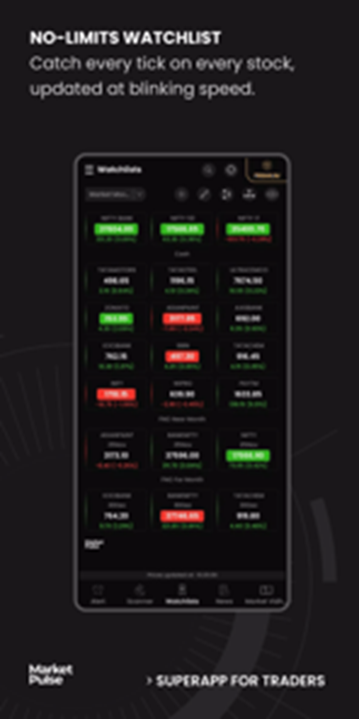
Screen real estate is the other reason people make the switch. A watchlist on one side, a chart in the middle and the option chain visible without switching tabs is a genuinely different way of working compared with the phone version, even though the app itself is identical.
Practical Notes Before You Rely on It
A few things are worth keeping in mind. Data feeds and alert delivery depend on your connection, so an emulator sitting on flaky Wi-Fi will not serve you well during a volatile session. Alerts are only as useful as the levels you set, and setting twenty of them across twenty stocks produces noise rather than signal.
It is also an analysis app first. Order placement, brokerage accounts and settlement live elsewhere in your setup, and Market Pulse is the layer where you decide what to do rather than where you do it.
Which brings it back to that shortlist workflow. The screener narrows a few thousand tickers to a handful, the chart tells you whether the setup is real, and the alert holds your place until price arrives. On a Windows monitor, all three of those steps stay visible at once.